自建服务与 VPS 运维合集
在自家机器或便宜 VPS 上跑服务:LNMP 环境、开机自启的游戏服、NAS 上的软件源,以及云主机的监控进程清理。
CentOS 7 YUM 10分钟快速安装 LNMP 环境
转载
源码编译安装 LNMP 环境虽然便于自定义,但是对于小型服务器来说,漫长的编译时间让人无法等待。如果能在 10 分钟后内搞定环境安装,再好不多了。
那么如何在 10 分钟内快速安装完 LNMP 环境呢,答案是 使用 YUM 安装。
什么 YUM ?
yum is a software package manager that installs, updates, and removes packages on RPM-based systems. It automatically computes dependencies and figures out what things should occur to install packages. yum makes it easier to maintain groups of machines without having to manually update each one using rpm.
Features include:
- Support for multiple repositories
- Simple configuration
- Dependency calculation
- Fast operation
- RPM-consistent behavior
- Package group support, including multiple-repository groups
- Simple interface
其中有两条解释很明显,Simple configuration —— 简单配置,Fast operation ——快速操作。
配置安装
基于 YUM 的这种特性,那么就可以简单粗暴的安装 LNMP 环境了。
配置 YUM 源
CentOS 7 的 默认 YUM 源里的软件包版本可能不是最新的,如果要安装最新的软件包就得配置下 YUM 源。
配置 YUM 源可以通过直接安装 RPM (Red Hat Package Manager) 包,或者修改 Repository,本文讲解通过安装 RPM 方式。
首先需要安装 EPEL ( Extra Packages for Enterprise Linux ) YUM 源,用以解决部分依赖包不存在的问题:
1 | yum install -y epel-release |
接着是 MySQL YUM 源,MySQL 官网给出了配置教程,因为本文章讲解的是 CentOS 7,我们只需要安装对应的 RPM 包就行了。
安装 RPM 包前需要导入 RPM-GPG-KEY 文件,不然安装过程会出错。
将 MySQL RPM-GPG-KEY 另存为 mysql_pubkey.asc 并导入 :
1 | rpm --import mysql_pubkey.asc |
导入后安装 CentOS 7 的 MySQL RPM 包:
1 | rpm -Uvh http://repo.mysql.com/mysql-community-release-el7-5.noarch.rpm |
然后是 PHP YUM 源,PHP 最新的 RPM 包,可以使用 Remi’s RPM repository。
1 | rpm --import http://rpms.remirepo.net/RPM-GPG-KEY-remi |
安装 PHP RPM (remi) 包:
1 | rpm -Uvh http://remi.mirrors.arminco.com/enterprise/remi-release-7.rpm |
最后是 Nginx YUM 源,Nginx 官网也给出了配置教程。
1 | rpm --import http://nginx.org/packages/keys/nginx_signing.key |
安装 Nginx RPM 包:
1 | rpm -Uvh http://nginx.org/packages/centos/7/noarch/RPMS/nginx-release-centos-7-0.el7.ngx.noarch.rpm |
到目前为止,YUM 源已经安装好了 ,接着进行下一步的配置。
MySQL YUM 源默认是启用的 MySQL-5.6,PHP YUM 源默认都没有启用,Nginx YUM 源默认是启用的 Nginx-1.8。
定位到 /etc/yum.repos.d/,对 后缀为 .repo 的文件进行编辑,修改 enabled 为1 以启用。
启用 PHP-7.0 :
1、修改 /etc/yum.repos.d/remi.repo,将 [remi] 和 [remi-test] 下面的 enabled=0 改为 enabled=1;
2、修改 /etc/yum.repos.d/remi-php70.repo,将 [remi-php70] 下面的 enabled=0 改为 enabled=1;
1 | sed -i "/remi\/mirror/{n;s/enabled=0/enabled=1/g}" /etc/yum.repos.d/remi.repo |
到这一步 YUM 配置就算完成了,清除并生成 YUM 缓存使之生效:
1 | yum clean all |
安装 MySQL + PHP + Nginx + phpMyAdmin
YUM 源已经配置好了,现在直接安装 MySQL + PHP + Nginx + phpMyAdmin:
1 | yum install -y mysql-community-server nginx php php-bcmath php-fpm php-gd php-json php-mbstring php-mcrypt php-mysqlnd php-opcache php-pdo php-pdo_dblib php-pgsql php-recode php-snmp php-soap php-xml php-pecl-zip phpMyAdmin |
注:上面安装的 php-* 可以根据实际使用情况选择安装
安装完成后,进行下一步的环境配置,MySQL 配置文件在 /etc/my.cnf.d/,PHP 配置文件在 /etc/php-fpm.d/,Nginx 配置文件在 /etc/nginx/ ,phpMyAdmin 的配置文件在/etc/phpMyAdmin/。
配置 MySQL
MySQL 配置文件保持默认,运行一次安全配置即可。
启动 MySQL:
1 | systemctl start mysqld.service |
安全配置 MySQL:
设置 root 密码、删除匿名用户、禁止 root 远程登录、删除 test 数据库、重新加载权限表,一路 Y 下去
1 | mysql_secure_installation |
配置 PHP
PHP 默认配置文件使用的是监听 9000 端口进行通信,针对小型单一、没有做负债均衡的服务器,可以使用 unix sock 方式通信。
使用 unix sock 方式需要修改 PHP 配置文件:
1 | #更换监听方式 |
启动 PHP-FPM:
1 | systemctl start php-fpm.service |
配置 Nginx
让服务器默认访问显示为 400 提示页。
1 | #新建名为 nginx-default.conf 的配置文件 |
将以下信息输入到 nginx-default.conf
1 | server |
按下 Esc,输入 :x 保存并退出。
防火墙放行 HTTP 端口访问:
1 | firewall-cmd --permanent --zone=public --add-service=http |
启动 Nginx:
1 | systemctl start nginx.service |
这时,在浏览器地址栏输入当前服务器 IP 就会看到一个 400 的提示页面了。
进阶!绑定域名+站点目录+保存日志+运行 PHP的配置文件:
1 | server |
配置 phpMyAdmin
1 | # 编辑配置文件 |
修改以下内容:
1 | $cfg['Servers'][$i]['host'] = 'localhost'; |
如果Nginx使用的是上面的进阶代码,那么把 phpMyAdmin 的目录 复制到 /home/wwwroot/default/phpMyAdmin/ 下面,就可通过http://default.com/phpMyAdmin 访问了:
1 | #复制 phpMyAdmin 目录 |
Linux Game Server Running on Boot
Using systemd
systemd is the default init system for most modern distros.
You need to create a service file in /etc/systemd/system/
Example ts3server.service:
1 | [Unit] |
Replace the user and paths to fit your setup.
You need to reload the systemd-daemon once to make it aware of the new service file:
1 | systemctl daemon-reload |
Now you can do:
1 | sudo systemctl start ts3server # Start the server |
Using Crontab
The crontab will allow you to create cronjobs that allow you to run a command on a set time or on boot. The below examples uses @reboot that will run a command on boot。
1 | @reboot '/home/username/gameserver monitor' > /dev/null 2>&1 |
note: Most admins will also have a timed monitor cronjob configured. If you do not want to have extra cronjobs the timed monitor will also start a server but with a timed delay.
Using monitor command
After a reboot, any game server that has a “started” status will be started on boot. Servers that were manually stopped will remain stopped.
1 | crontab -e |
To learn more, see cronjobs and automated monitoring.
Using start command
Start a game server unconditionally, even if you manually stopped a server.
1 | crontab -e |
To learn more, see Start-Stop-Restart
Using rc.local
rc.local is another method to run scripts on boot. Any commands added to the rc.local file will run on boot.
1 | nano /etc/rc.local |
Linux(CentOS 7)下使用mono+ArchiSteamFarm挂卡
首先感谢@zjmonk 发现的ArchiSteamFarm这么好的挂卡软件,在他的帖子里还提醒我可以用mono在linux上玩,真是大好人啊
补充下,本教程适用于服务器上24小时不间断挂卡,个人电脑不推荐安装linux桌面系统,自己家里还是用idle master更直观
FAQ: 1. 什么是mono呢? 简单的理解,可以认为是linux环境下的.net Framework,是个开源的项目,可以让C#程序运行在linux上面 2. 为什么要用linux? 当然是因为linux轻便性能高啦,如果能用linux挂卡,各大低配魔法主机、家里闲置的电脑、公司的服务器,都能拿来24小时挂卡!不用非得租用昂贵的Windows服务器啦! 3. 任何linux系统都可以吗? 本人linux小白,只保证CentOS7 64位我是测试过的,理论上Redhat也能用本教程。linux版本众多,不保证所有环境都行。 此外,mono这个东西,以前想用来开泰拉瑞亚服务器的时候用过,遭到了无情的失败,所以在一些环境里用mono无法运行一些C#程序,也是正常的…
下面是教程: 1. 首先ssh连接上远程主机,进入命令行 2. 安装mono(参考了CentOS 7 上部署Mono 4 和Jexus 5.6),先添加yum源。
2
3
yum-config-manager --add-repo http://download.mono-project.com/repo/centos/
有可能提示找不到yum-config-manager ,这个是因为系统默认没有安装这个命令,这个命令在yum-utils 包里,可以通过命令yum -y install yum-utils 安装。 然后
- yum -y install mono-complete
复制代码
这里和那篇文章里不太一样,我的主机执行他说的yum –y install mono-complete.x86_64会提示找不到包 最后执行
- mono -V
复制代码
如果出现 说明安装成功了。 3. 开始挂卡 安装完mono,可别急着运行,因为当前直接运行的话,一旦断掉ssh会话,程序就停止啦 使用screen命令,没安装的先yum -y install screen安装下 开启screen新窗口,并命名为asf
- screen -S asf
复制代码
根据安利一个新的挂卡软件ArchiSteamFarm - 平台研讨 - SteamCN 蒸汽动力 - 驱动正版游戏的引擎! 下载asf,配置好你的xml文件,然后用ftp等方式把整个文件夹上传到远程主机,我的上传路径是/opt/ASF执行
- cd /opt/ASF
- mono ASF.exe
复制代码
看到
大功告成!这时候你就可以安心的退出ssh连接 4. 退出挂卡
- screen -ls #显示所有的screen窗口名字和进程号
- kill [进程号]
复制代码
这样就能退出了
Install entware repository on Synology NAS
Introduction
ARM & intel based devices are supported. DSM version must be 3.2 or higher. Use armv5 installer for Marvell Kirkwood mv6282 cpu, you can use armv7 installer for newer ARM cpu’s. Although armv7 repo was compiled with cortex-a9 optimization it was successfully tested on Marvell Armada XP based NAS.
Deploying Entware-ng
1. Create a folder on your hdd (outside rootfs)
1 | mkdir -p /volume1/@entware-ng/opt |
Make sure that /opt folder is empty (Optware is not installed), we will remove /opt folder with its contents at this step.
2. Remove /opt and create a symlink
1 | rm -rf /opt |
3. Run install script
- for ARMv5
1 | wget -O - http://pkg.entware.net/binaries/armv5/installer/entware_install.sh | /bin/sh |
- for ARMv7
1 | wget -O - http://pkg.entware.net/binaries/armv7/installer/entware_install.sh | /bin/sh |
- for x86-32
1 | wget -O - http://pkg.entware.net/binaries/x86-32/installer/entware_install.sh | /bin/sh |
- for x86-64
1 | wget -O - http://pkg.entware.net/binaries/x86-64/installer/entware_install.sh | /bin/sh |
- for MIPS
1 | wget -O - http://pkg.entware.net/binaries/mipsel/installer/installer.sh | /bin/sh |
4. Edit /etc/rc.local file
Edit /etc/rc.local file with a text editor and insert following strings:
1 | /bin/ln -sf /volume1/@entware-ng/opt /opt |
at the end of this file, but before exit 0. The last line ensures that Entware services will be started at boot.
Note: As of DSM 6.0,
/etc/rc.localis no longer executed as part of the boot process. Instead you have two options.
Option 1: Documented in the Synology DSM6.0 3rd-Party Package Developer Guide, custom startup scripts should be placed in /usr/local/etc/rc.d.
Example: Create /usr/local/etc/rc.d/entware-startup.sh:
1 |
|
Option 2: Make an executable script and use the Task Scheduler to create a triggered task that runs on boot. The script would contain:
1 |
|
5. Add the following line in the end of /etc/profile file
1 | . /opt/etc/profile |
It will add /opt/bin and /opt/sbin to the PATH variable for interactive login.
6. Reboot your NAS
After rebooting, you can use opkg commands.
via Entware Wiki - Install on Synology NAS
在万由U-NAS 4.0中使用无线网卡
U-NAS 4.0 使用了 debian 9,内核版本提升到 4.9.0-8-amd64,支持的硬件更多,以前 3.0 的时候驱动很难编译过去(不知道系统内少了什么组件)。这里找到一块使用 MT7601u 的不知名无线网卡插在 nas 上面配置。
SSH 连接
获取 root 权限:
(root 密码 yutech,建议 adduser 创建个用户然后 visudo 写到 sudo 里面方便后续操作,自带 admin 账户连 /home 主目录都没有)
安装 Network-Manager
1 | sudo apt install network-manager |
插入无线网卡
输入 lsusb 查看型号:
此网卡在 Linux 内核中自带驱动,只需要下载闭源 firmware 即可。
提取 mt7601u.bin 文件,放到 nas 的 /lib/firmware 下面(不知官方为何去掉这个目录)。
1 | sudo mkdir /lib/firmware |
配置 NetworkManager
1 | sudo nano /etc/NetworkManager/NetworkManager.conf |
文档末尾写入如下内容:
1 | [device] |
最后 sudo reboot 重启后输入 sudo nmtui 配置无线网络。
按提示输入密码,左侧出现 * 号即配置成功。
ifconfig 正常获取 ip,已经可以联网。
网页控制台同样显示,正常出现 IP 即可。
使用吃灰的Android手机代替第三方开发板等制作简易家庭服务器
准备工作:通过 Play Store 或 apkpure 等官方商店安装 Linux Deploy APP,启动后点击右下角箭头图标,进行如下设置。本次以安装 Fedora 25 为例,设备为古董的 MSM8926+1GB RAM。
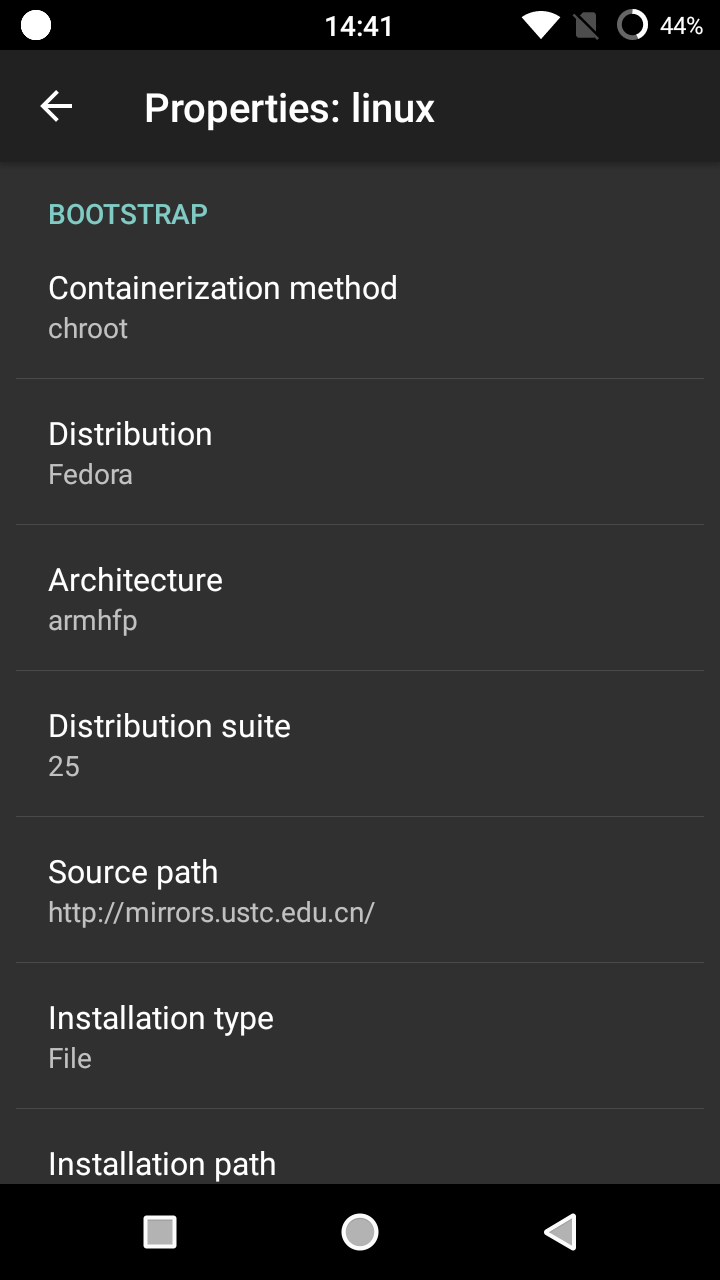
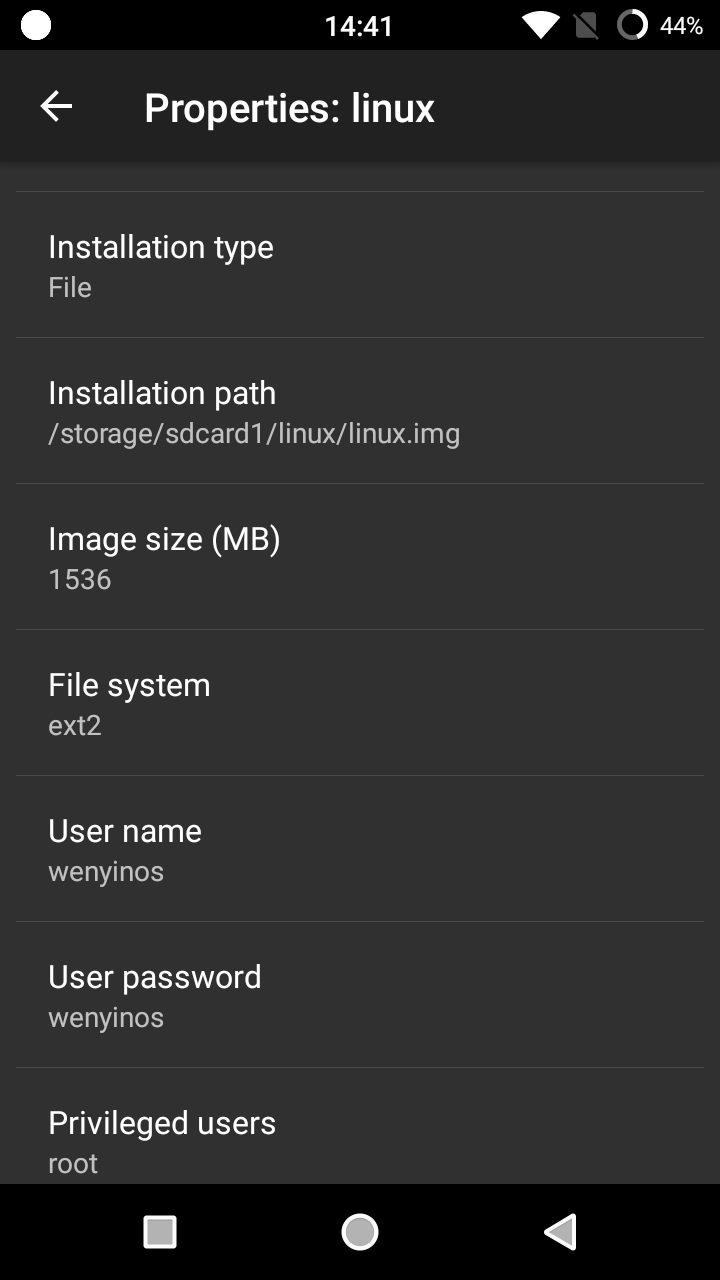
Image size 指安装盘 img 文件大小,合理分配位置以及容量,无图形界面的 Linux 安装一般需要 1.5GB 就足够了,采用 chroot 形式。文件系统建议使用非日志形式的 ext2,减少对存储介质的损伤。源镜像用国内服务器即可,填入:
1 | http://mirrors.ustc.edu.cn |
注意各发行版的地址形式不同,Arch Linux 一般为:
1 | http://mirrors.ustc.edu.cn/archlinuxarm |
另外注意发行版的架构,ARM 32 位机型选择 armhfp 或 armv7,ARM 64 位选择 armv8 或 aarch64 即可,Intel x86 设备选择 i686 或 x86_64 之类。
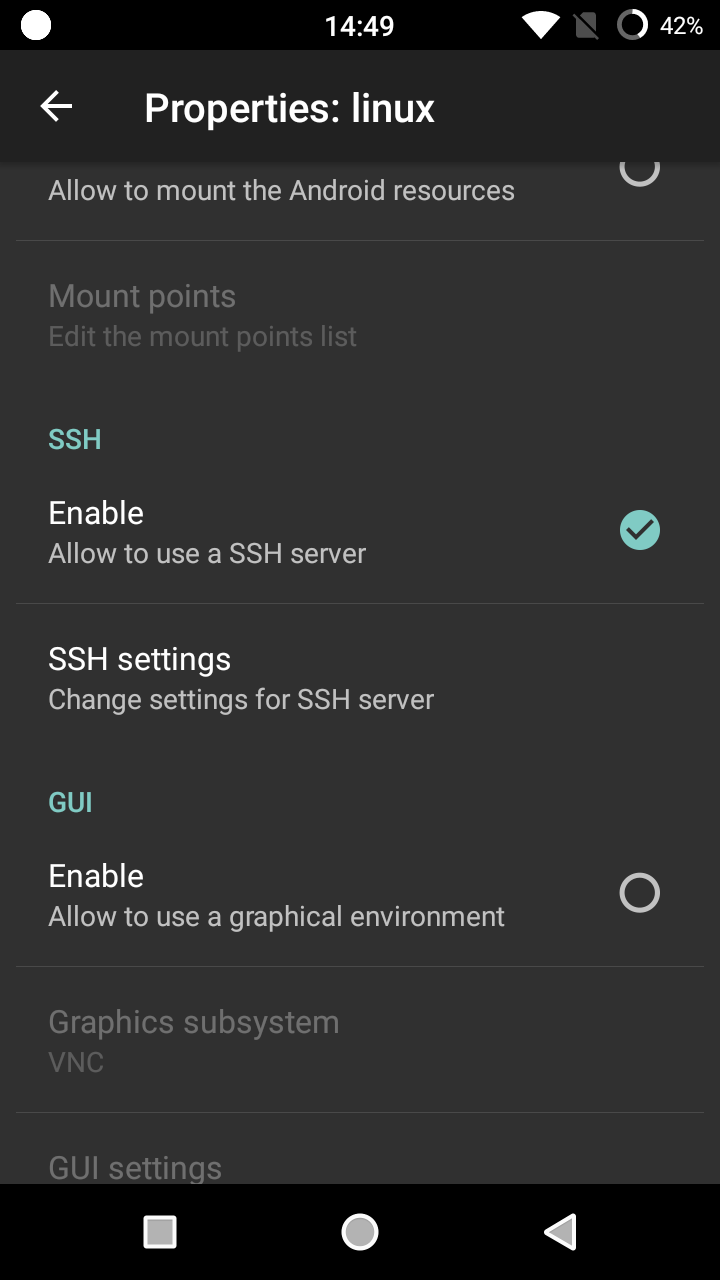
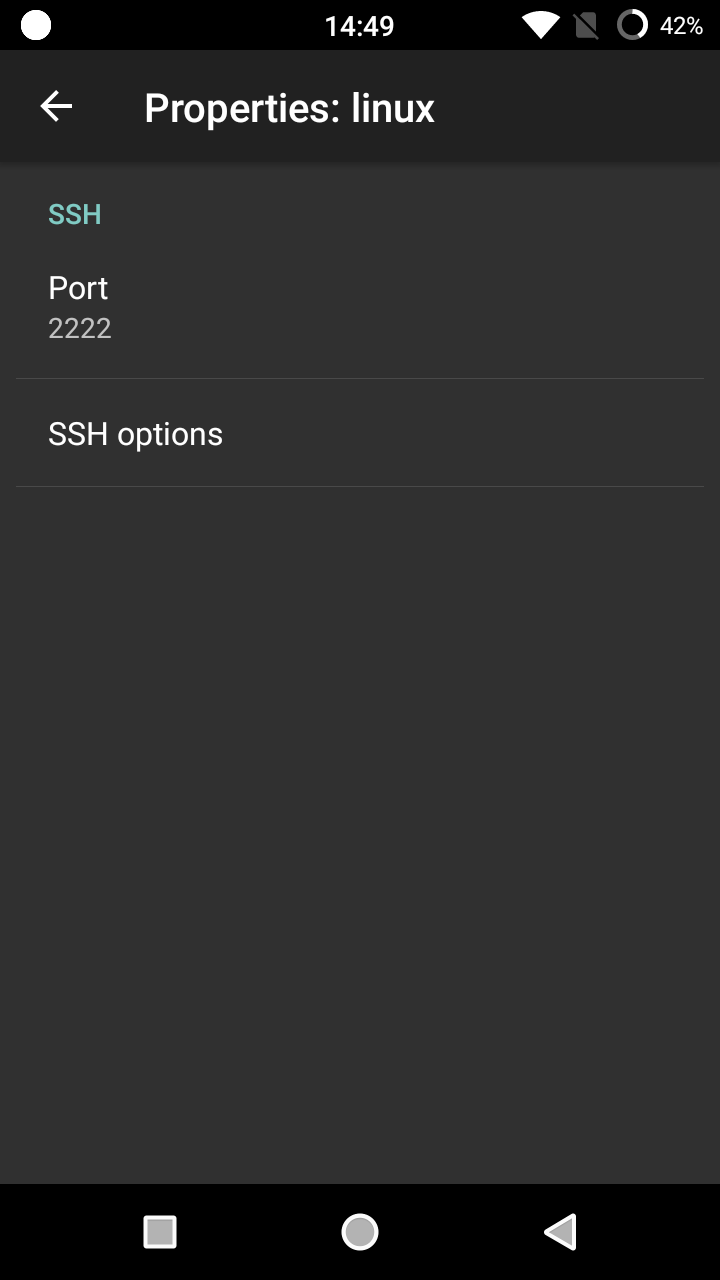
GUI 无特殊需求不建议安装,ssh 端口建议修改一下,此处改为 2222,以后本机 ssh 地址为 127.0.0.1:2222,用户名和密码已输入。
返回到主页面,右上角点击 install 开始安装,如果没有错误便开始配置一系列软件包,安装完会有提示。等待一些时间。
安装完成后点击 start 启动,设备连接到无线局域网,用手机端或 PC 端 SSH 工具都可以访问(当然本机也可以),IP 就是显示那个。
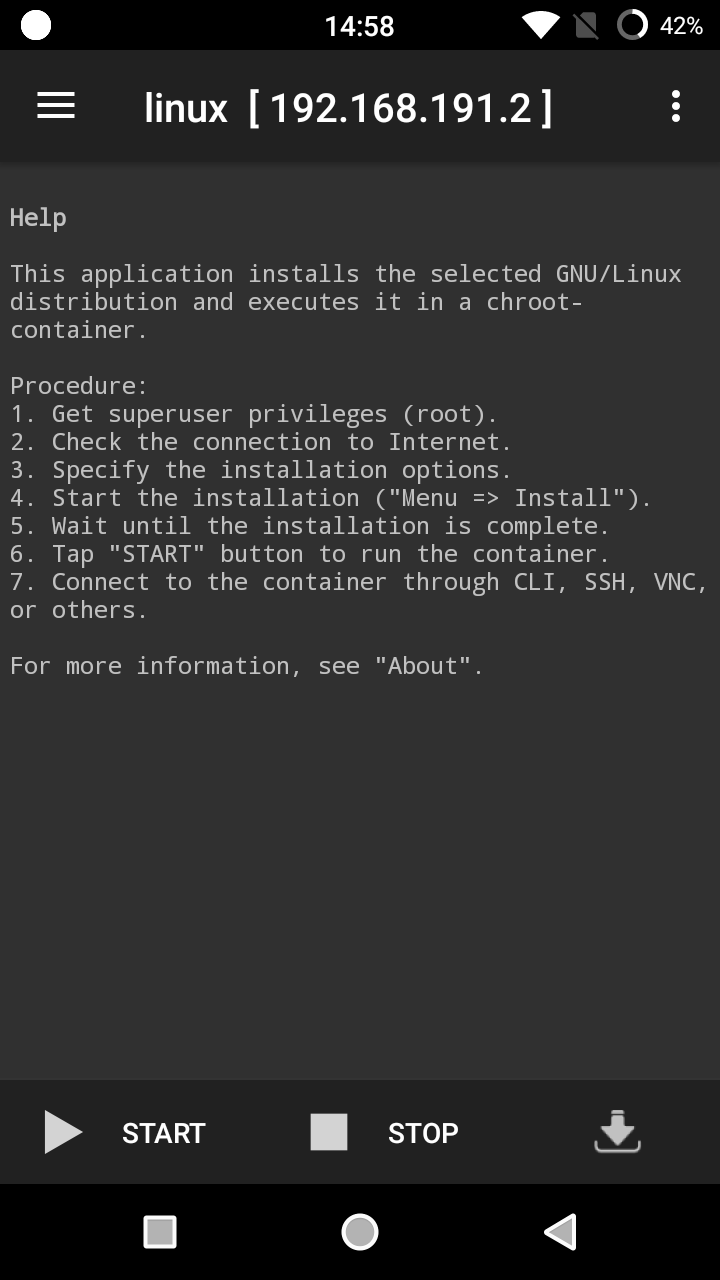
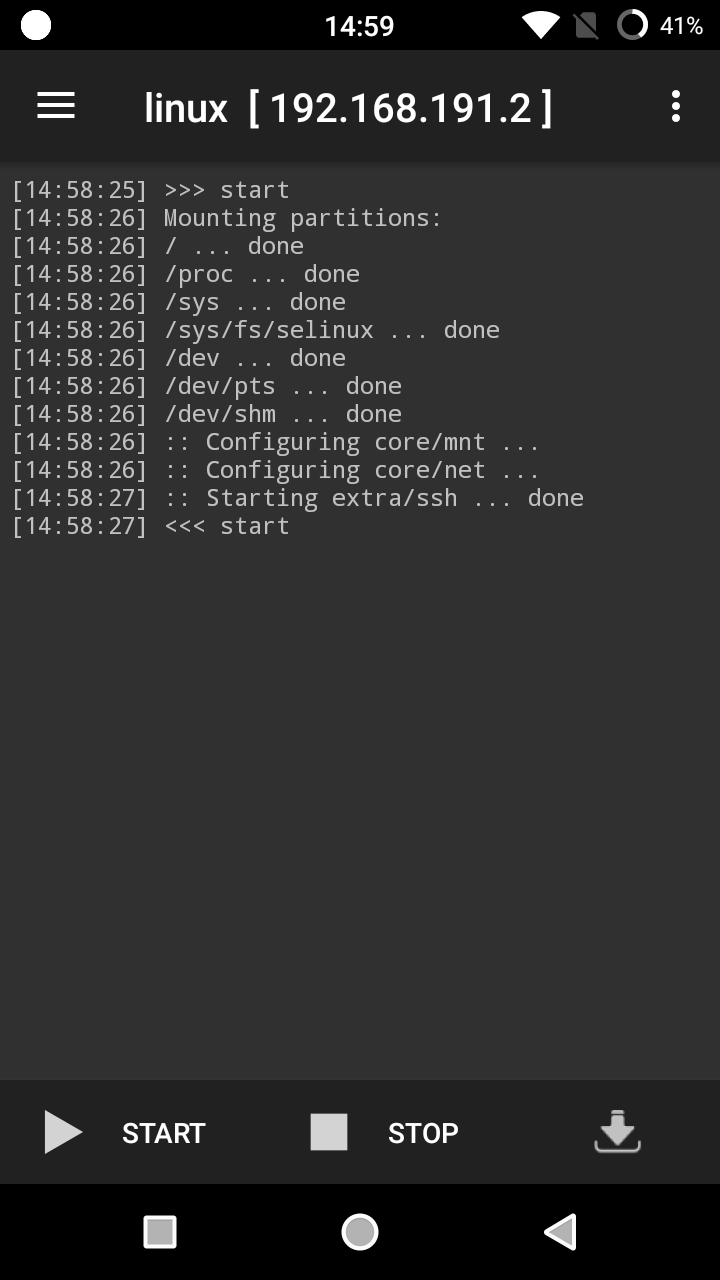
另外注意要设置保持唤醒,否则 ARM 设备在灭屏状态下 CPU 会休眠无法运行,Linux Deploy APP 也不能放到一键清理中:
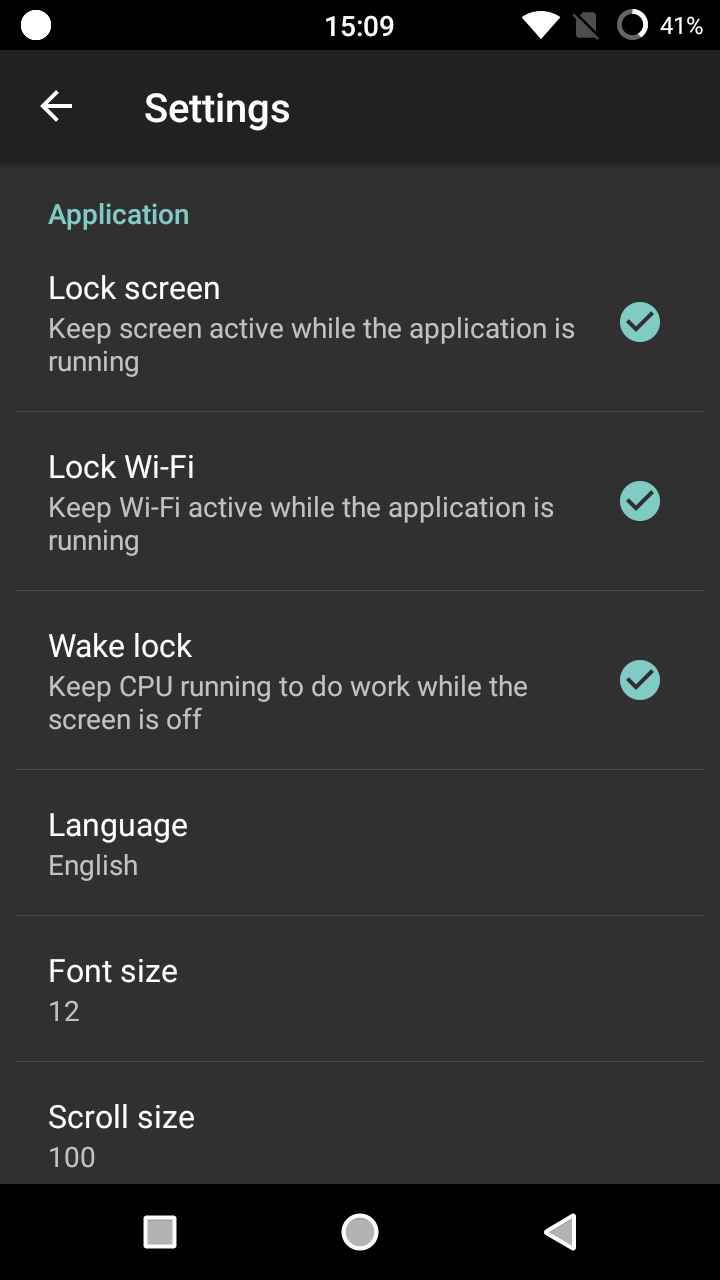
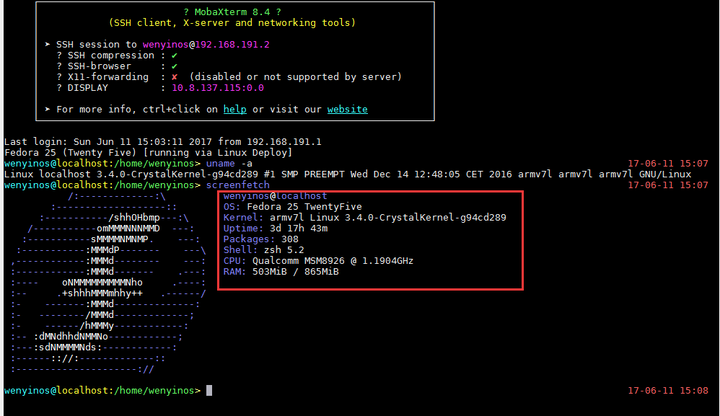
下面用 PC 上面的 ssh 工具登录,即可当做普通的 Linux 设备使用。
有些 Linux 命令可能不全需要手动补充,例如 ifconfig 需要 net-tools 软件包,free、ps 等需要 procps-ng 软件包,wget、gcc、git、perl、python 等环境也需要安装。
此处识别出了 Qualcomm MSM8926:
下面测试实例为安装 nginx web server,通过 dnf 安装:
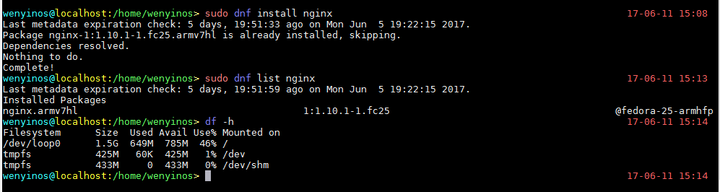
磁盘占用情况,也是不多的。
注意 Android 手机的 chroot 环境下无法运行 systemctl、service 等服务管理命令,只可直接运行 nginx 可执行文件,需将参数写入开机运行脚本:
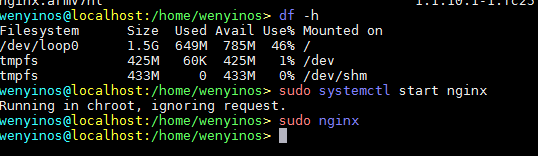
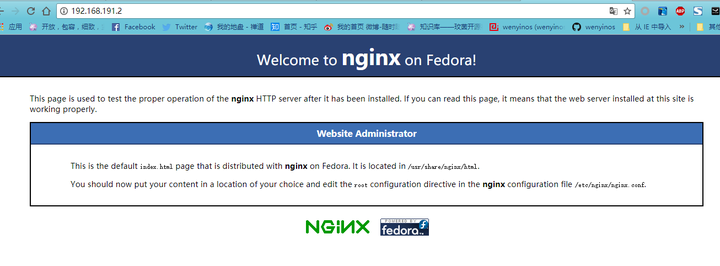
启动 web 服务后在浏览器输入 Android 的设备 IP,显示以下页面表示成功。以后配置所有支持 ARM 编译的 Linux 软件都可以了,以现在手机性能运行一个小型网站不是问题。
卸载阿里/腾讯云Linux主机监控进程,屏蔽云盾功能
卸载阿里云盾监控
1 | wget http://update.aegis.aliyun.com/download/uninstall.sh |
1 | wget http://update.aegis.aliyun.com/download/quartz_uninstall.sh |
删除残留
1 | sudo pkill aliyun-service |
屏蔽云盾 IP
用包过滤屏蔽如下 IP:
1 | iptables -I INPUT -s 140.205.201.0/28 -j DROP |
卸载云监控 Java 版本插件
1 | sudo /usr/local/cloudmonitor/wrapper/bin/cloudmonitor.sh stop |
阿里云监控插件卸载 Go 语言版本
烦人的插件,占内存。
1 | /usr/local/cloudmonitor/CmsGoAgent.linux-amd64 stop |
卸载云助手守护进程(Linux 实例)
云助手守护进程用于监控云助手客户端的资源消耗情况,上报云助手客户端的运行状态,以及当云助手客户端崩溃时重启客户端。您在卸载云助手客户端前,需要先卸载云助手守护进程。
说明 目前云助手守护进程仅支持 Linux 操作系统。
远程连接 Linux 实例。
停止云助手守护进程:
1 | /usr/local/share/assist-daemon/assist_daemon --stop |
说明
/usr/local/share/assist-daemon/assist_daemon为云助手守护进程的默认路径。
- 卸载云助手守护进程:
1 | /usr/local/share/assist-daemon/assist_daemon --delete |
- 删除云助手守护进程目录:
1 | rm -rf /usr/local/share/assist-daemon |
卸载云助手客户端(Linux 实例)
远程连接 Linux 实例。
卸载云助手守护进程。
停止云助手客户端。
运行以下命令卸载云助手客户端:
- rpm 包管理:
1 | sudo rpm -qa | grep aliyun_assist | xargs sudo rpm -e |
- deb 包管理:
1 | sudo dpkg -l | grep aliyun_assist |
- 删除云助手客户端目录:
1 | rm -rf /usr/local/share/aliyun-assist |
卸载腾讯云盾监控
1 | sudo systemctl stop tat_agent |
删除残留
1 | sudo rm -f /etc/systemd/system/tat_agent.service |
编辑 /etc/rc.d/rc.local 去掉下面几行,然后 reboot 重启:
1 | /usr/local/sa/agent/secu-tcs-agent-mon-safe.sh > /dev/null 2>&1 |